

Steps to Edit a Keyword Watchlist
Step 1: Open Keyword Watchlists
Navigate to Keyword Watchlist from the main dashboard. Locate the watchlist you want to update and click the pencil (edit) icon next to it.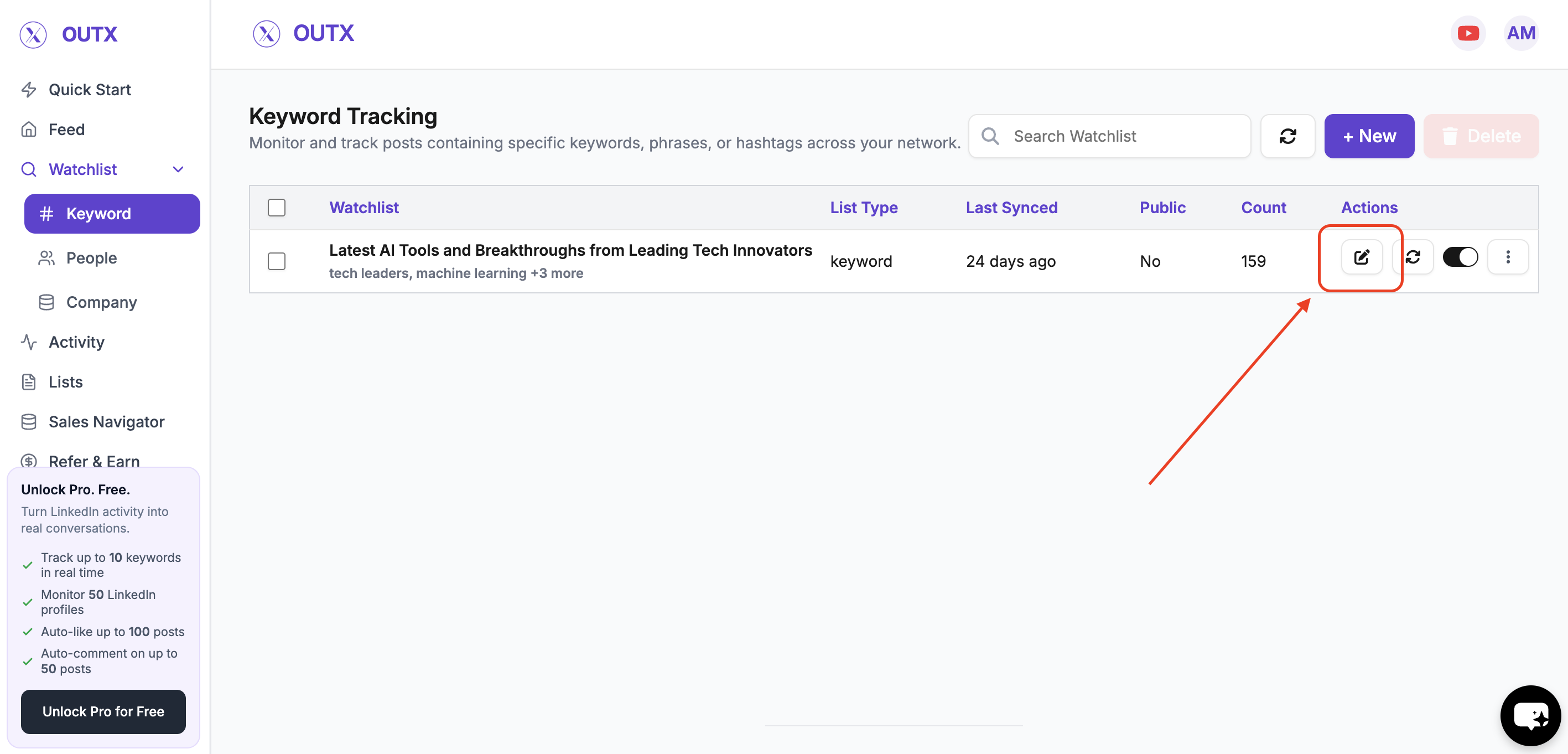
Step 2: Edit Watchlist Configuration
After clicking the edit icon, you will be taken to the watchlist setup screen. From here, follow the same steps used when creating a keyword watchlist, including:- Adding, removing, or modifying keywords
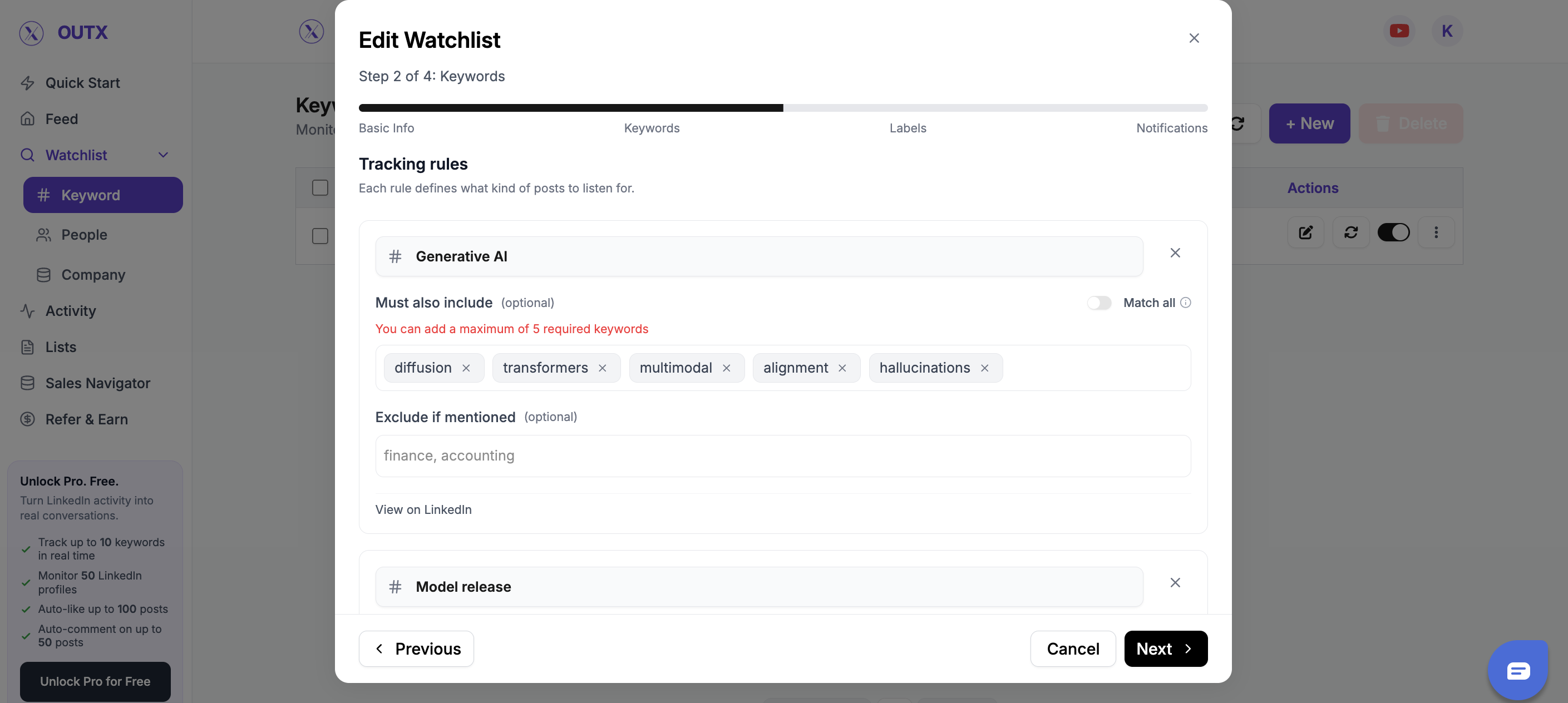
- Updating labels
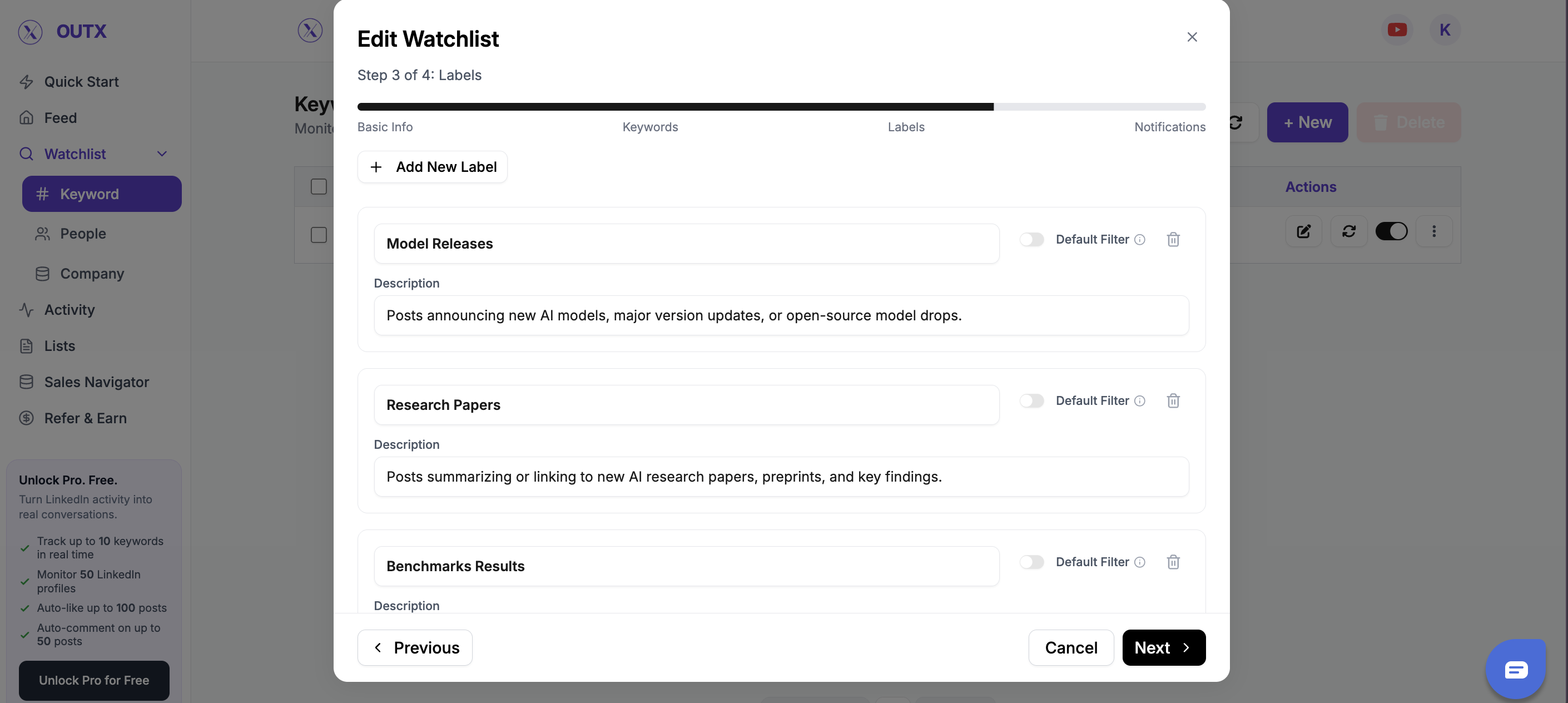
- Adjusting any alert or tracking settings
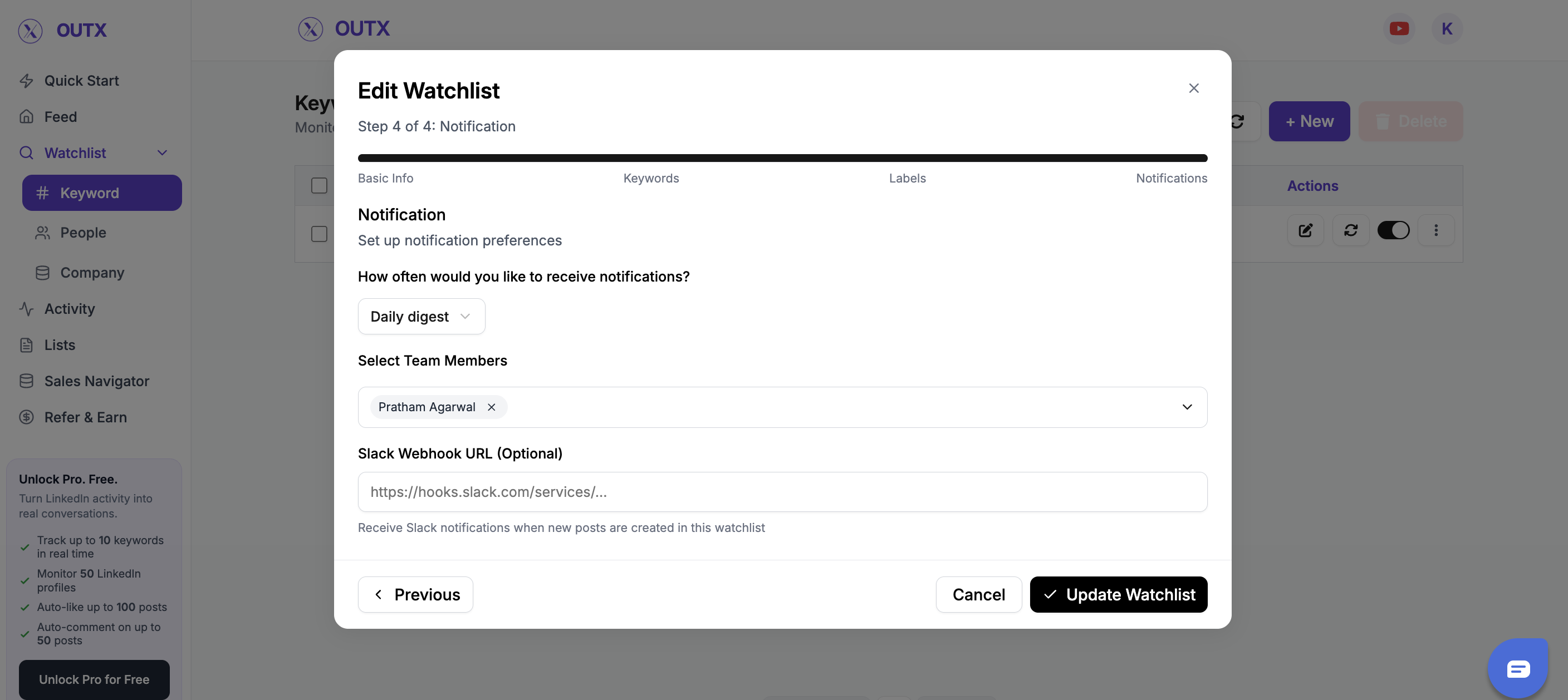
Step 3: Save Changes
Click Save to apply your updates. The watchlist will immediately start tracking data based on the updated configuration.FAQs
- What happens if I remove a keyword from a watchlist? If you remove a keyword, all posts associated with that keyword will be permanently removed from the watchlist results.
- What happens when I add a new keyword? When you add a keyword, new posts will start appearing from the moment the keyword is added onward. Previously published posts will not be backfilled.
- Does editing a watchlist reset existing data? No. Editing a watchlist does not reset the entire watchlist. Only data related to removed keywords is deleted.
- Can I edit a watchlist multiple times? Yes. You can edit a keyword watchlist at any time, and changes will apply after you save.
- Is editing different from creating a watchlist? The configuration steps are the same. The only difference is that editing starts by clicking the pencil icon on an existing watchlist instead of creating a new one.