

Auto Engagement via Watchlists
When Auto Engagement is enabled on a watchlist, OutX.ai monitors new posts in real time.- Posts are picked only if they match your keywords or tracked profiles
- You can auto-like, auto-comment, or both
- Engagement happens shortly after the post goes live, not days later
- This helps you stay visible without checking LinkedIn all day
Step 1: Open Watchlist
Go to Watchlists → select a watchlist → open Automated Rules from the right side → click Set rules. Automated rules are always tied to a watchlist. This means engagement only happens on posts that are in a watchlist where rule is added.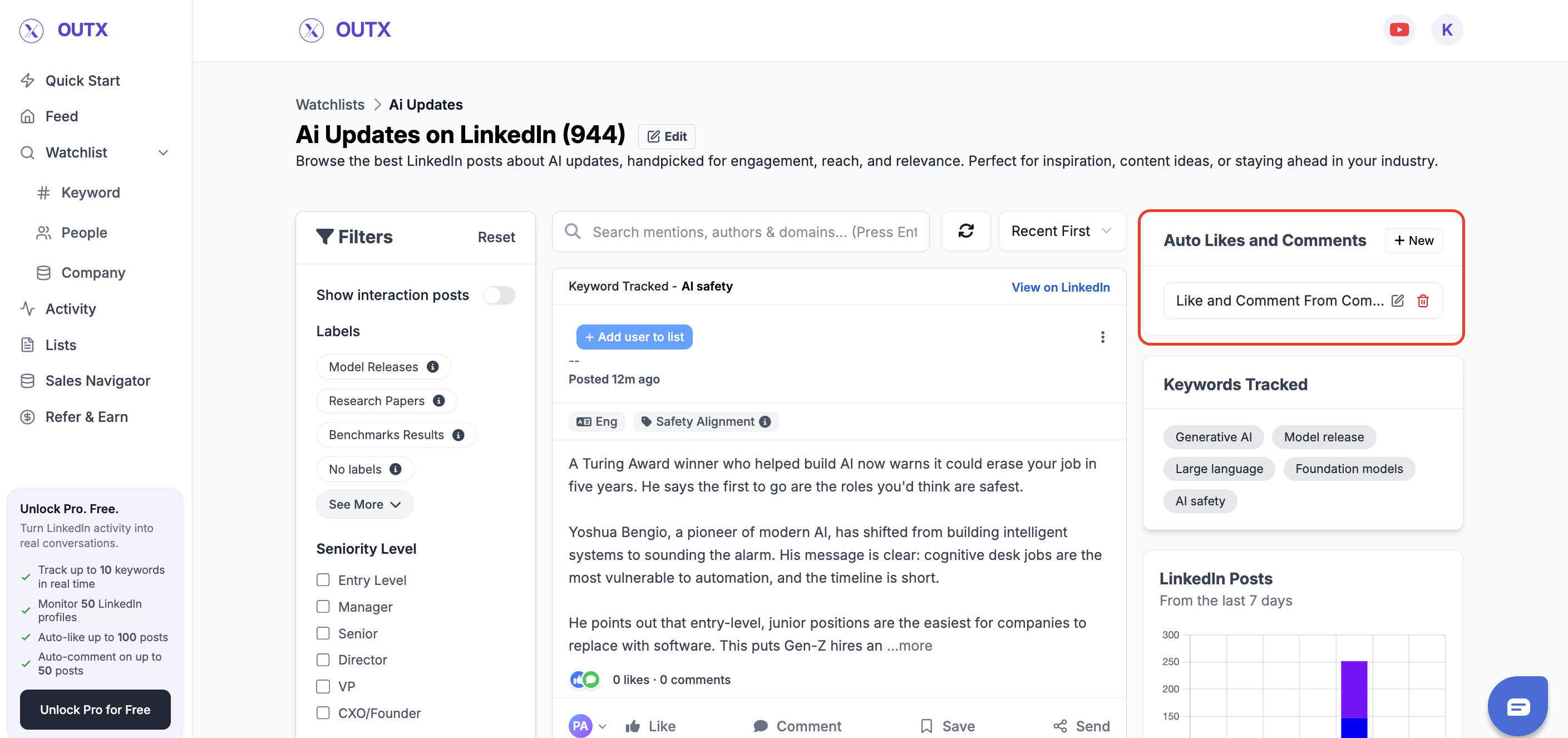
Step 2: Choose the automation type
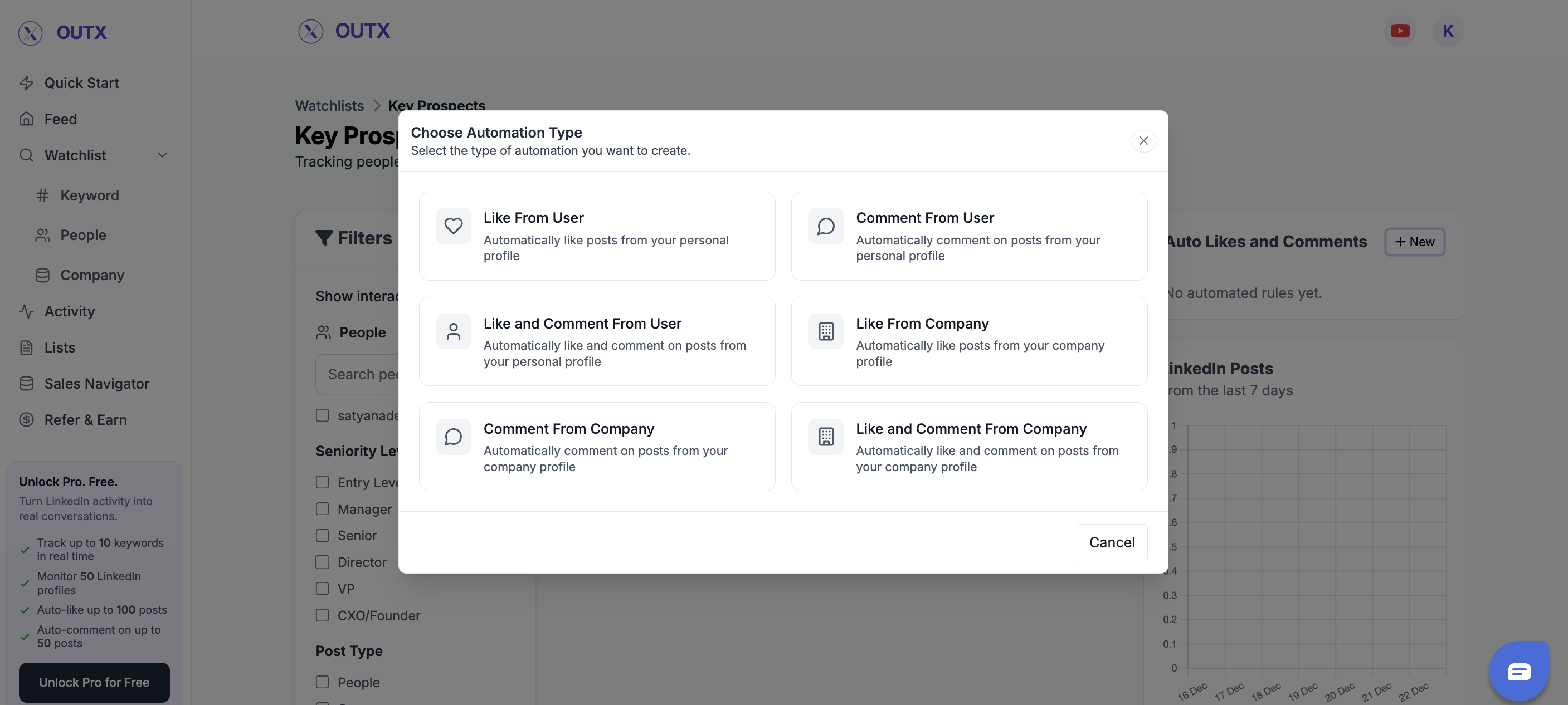
Here you decide who performs the engagement and what action is taken.Engage from a personal account
- Like from user – Likes posts from your personal or team member’s LinkedIn account
- Comment from user – Comments on posts from your personal or team member’s account
- Like and comment from user – Performs both actions from a personal account
Engage from a company page
- Like from company – Likes posts from your company’s LinkedIn page
- Comment from company – Comments using your company page
- Like and comment from company – Performs both actions from the company page
Step 3: Create Automation Rule
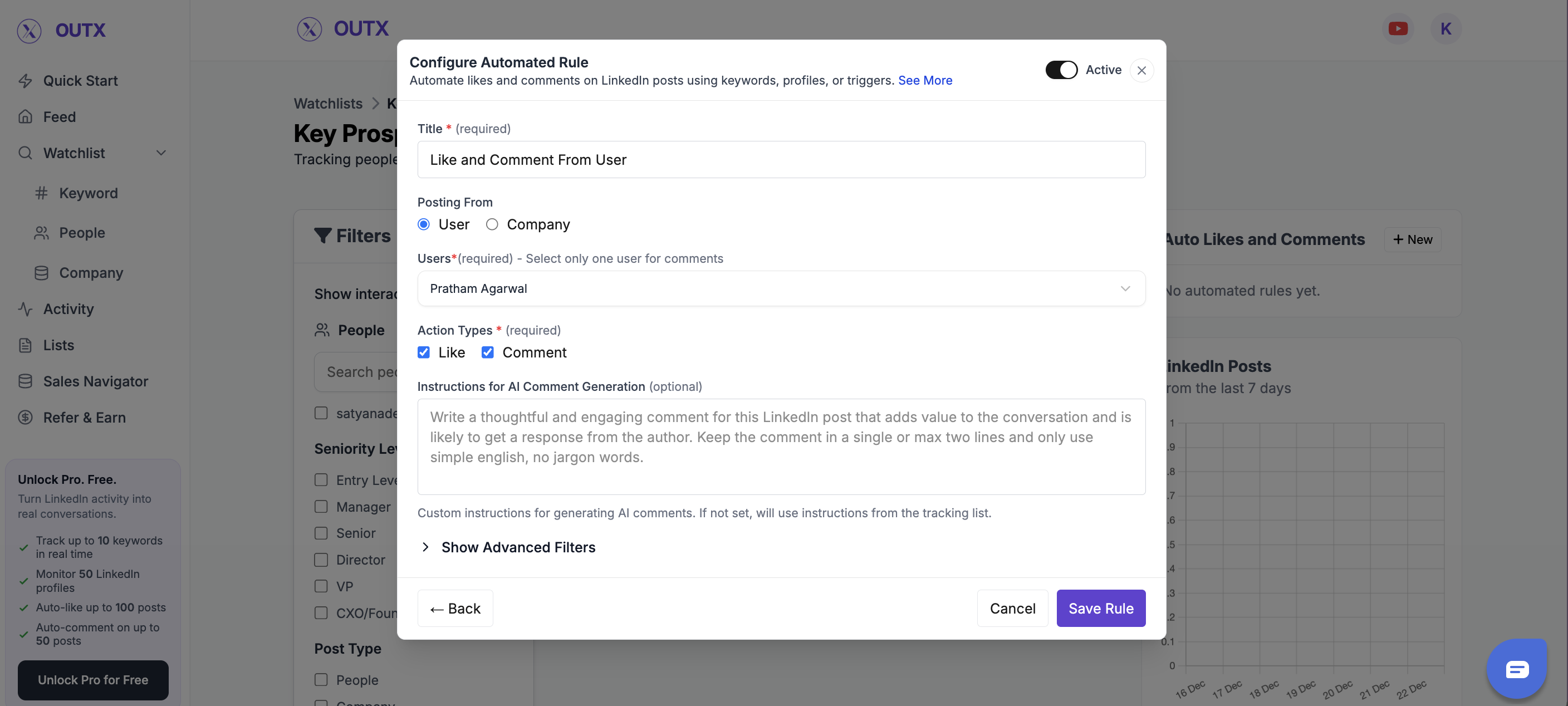
This step defines how the automation behaves.Rule Title
Give the rule a clear name so you know what it does. Examples:- Like hiring posts
- Comment on founder updates
- Engage with product mentions
Select Team Member
Choose which team member’s LinkedIn account will be used for engagement (only applicable for personal account actions).Choose Actions
Select what OutX.ai should do:- Like
- Comment
- Like and comment
Custom Instructions (Very Important)
Add simple guidance for how likes or comments should behave. Examples:- “Keep comments friendly and short”
- “Acknowledge the update without selling”
- “Congratulate and ask a light follow-up question”
Optional Controls
You can further fine-tune the rule if needed:- Profile exclusions – Skip engagement on specific profiles
- Employee level – Engage only with posts from certain seniority levels
- What to track – Choose which updates trigger engagement:
- Posts by people
- Posts by companies
- Job updates
- Birthdays
Result:
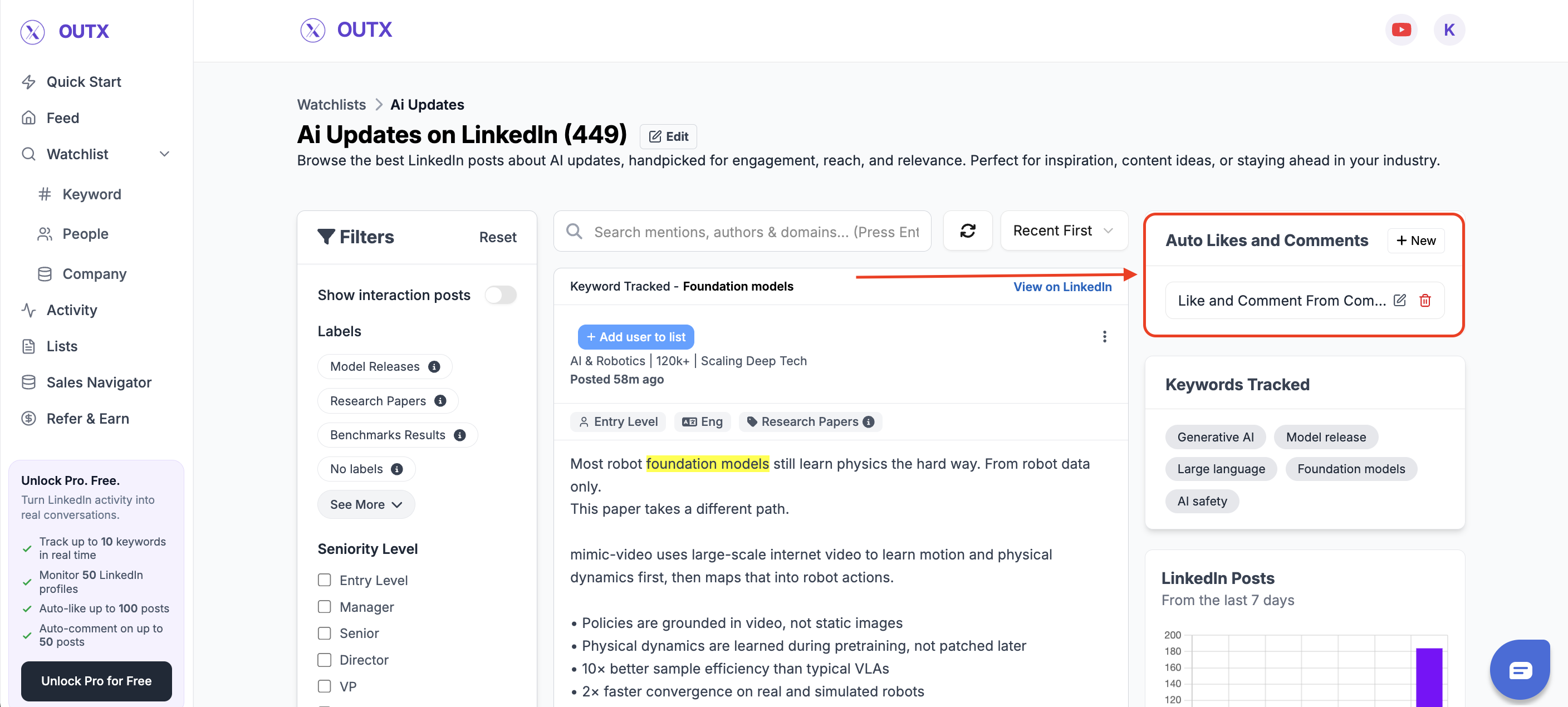
Once the rule is active, OutX.ai will automatically:- Like posts
- Add comments
- Or do both
Manual Engagement with AI Comments
For posts that matter more, you can engage manually with help from AI.- View all tracked posts in one place
- Click Generate Comment to get a relevant, natural reply
- Edit the comment before posting
- Post only when you are confident with the message
Step-by-Step: Comment Manually Using AI
Step 1: Open a Tracked Post
Go to any post inside your watchlist feed. This includes posts captured from:- Keywords
- Tracked people
- Tracked companies
Step 2: Click on Comment
Open the comment action for the post you want to respond to. This keeps the interaction contextual and focused on that post.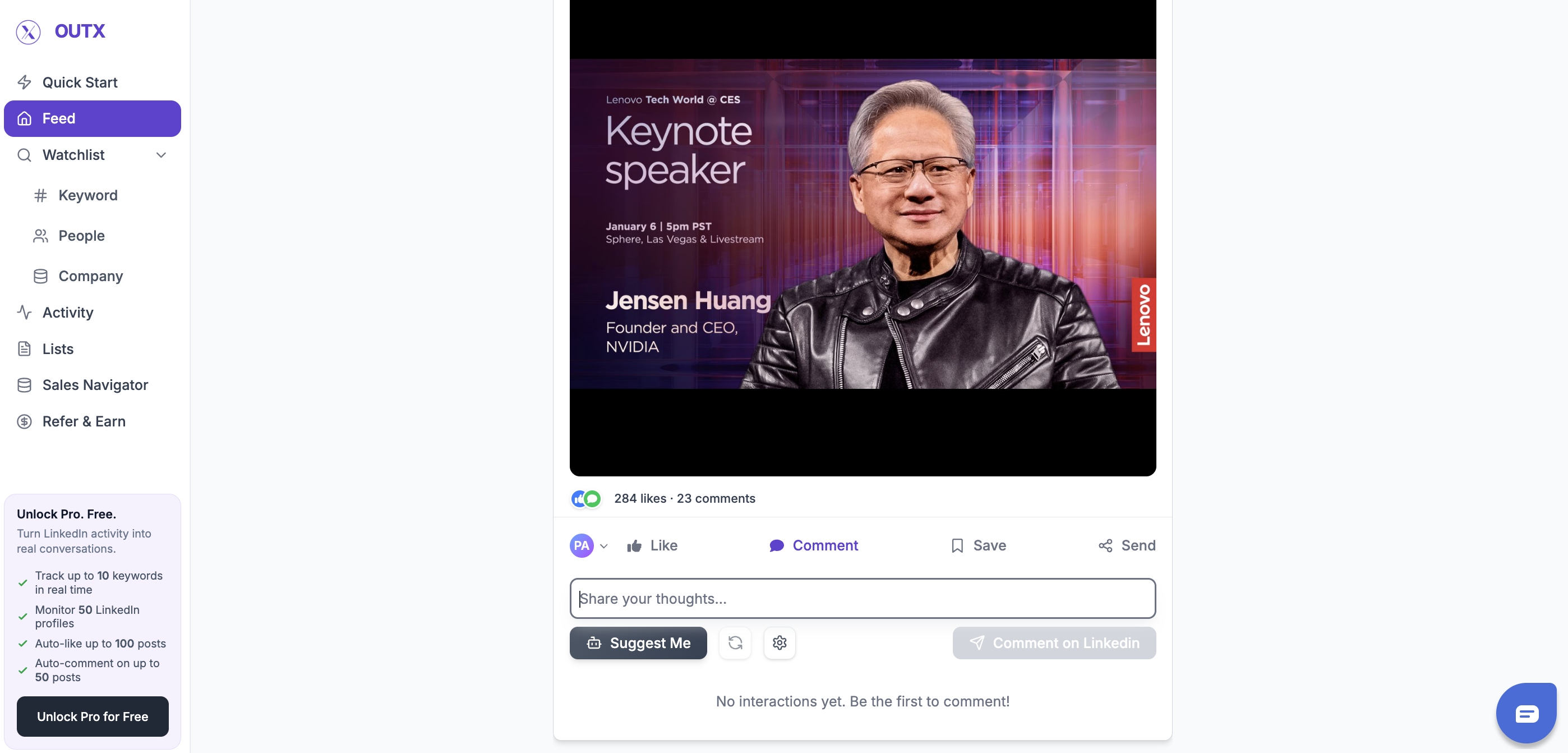
Step 3: Click “Suggest Me”
Click Suggest Me to generate an AI-written comment. The suggestion is based on:- The post content
- Your tracking context
- A natural, professional tone
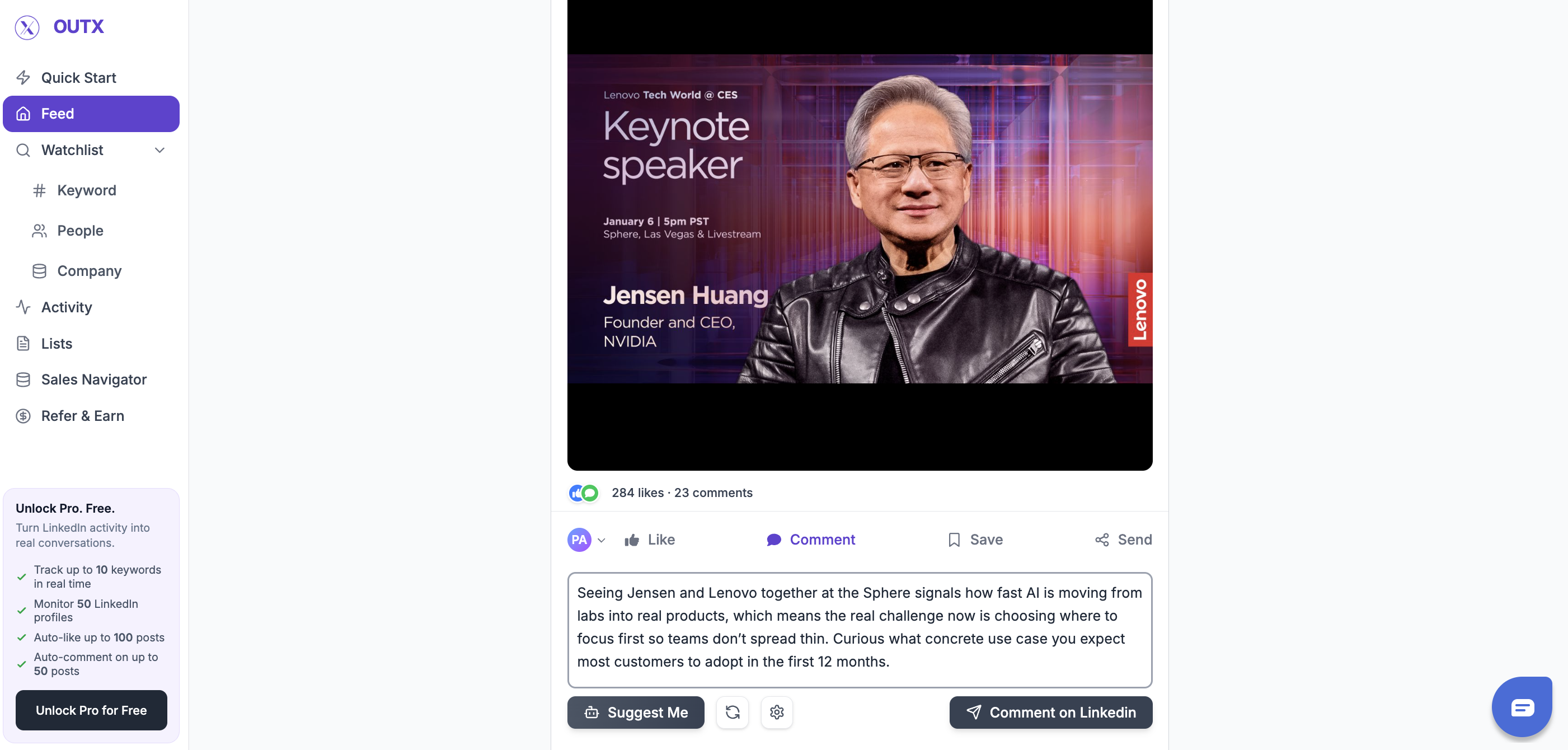
Step 4: Post When Ready
Once satisfied, post the comment directly on LinkedIn. If it doesn’t feel right, you can simply skip it.Use Both Together
Most teams use both options together:- Auto Engagement for daily visibility
- Manual AI comments for important conversations