

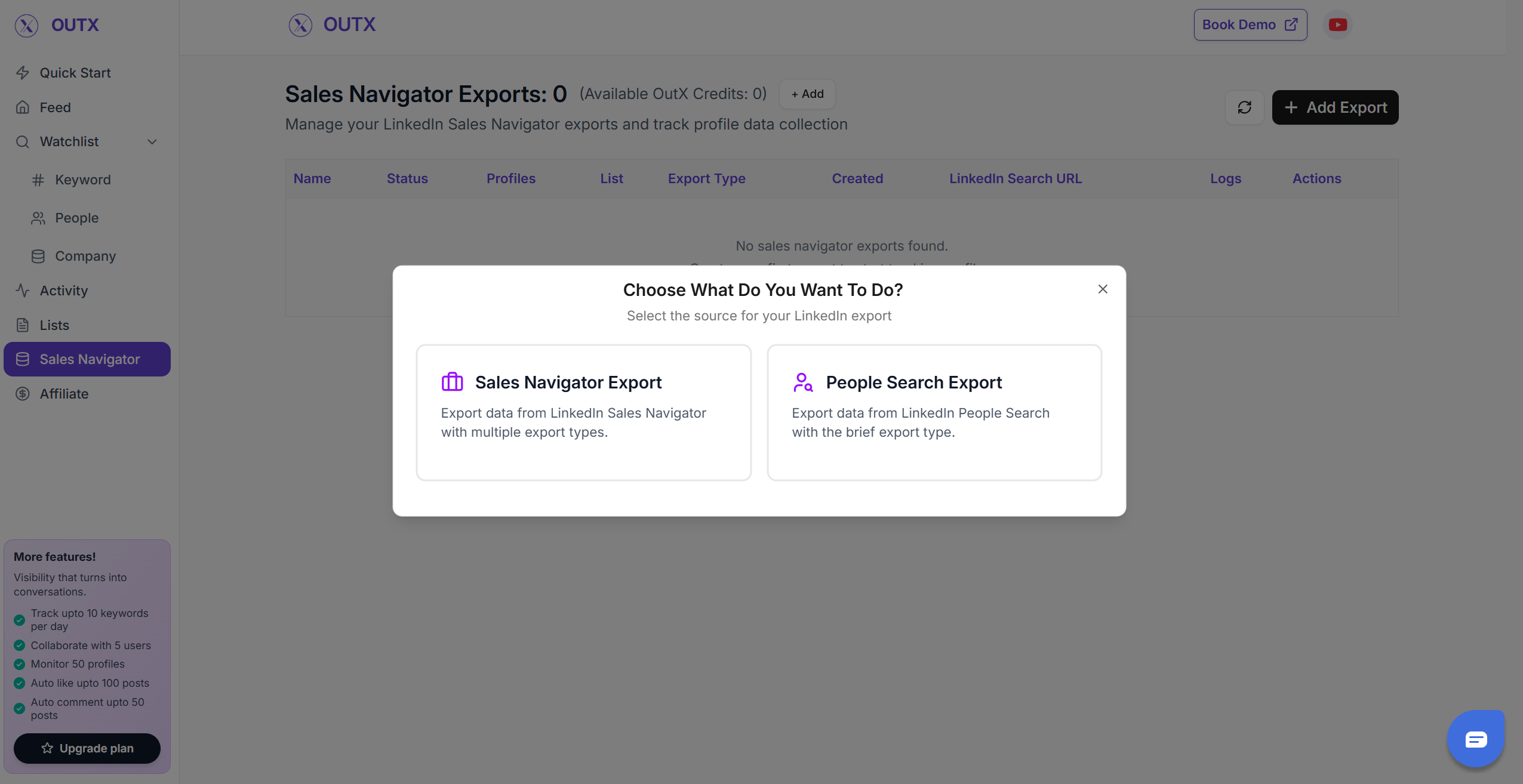
1. Select the “Type of export”
Select what you want to export from LinkedInSales navigator export
- Using this you can scrape the profiles from LinkedIn sales navigator scraper
- You can Copy the sales navigator URL or press export on the page.
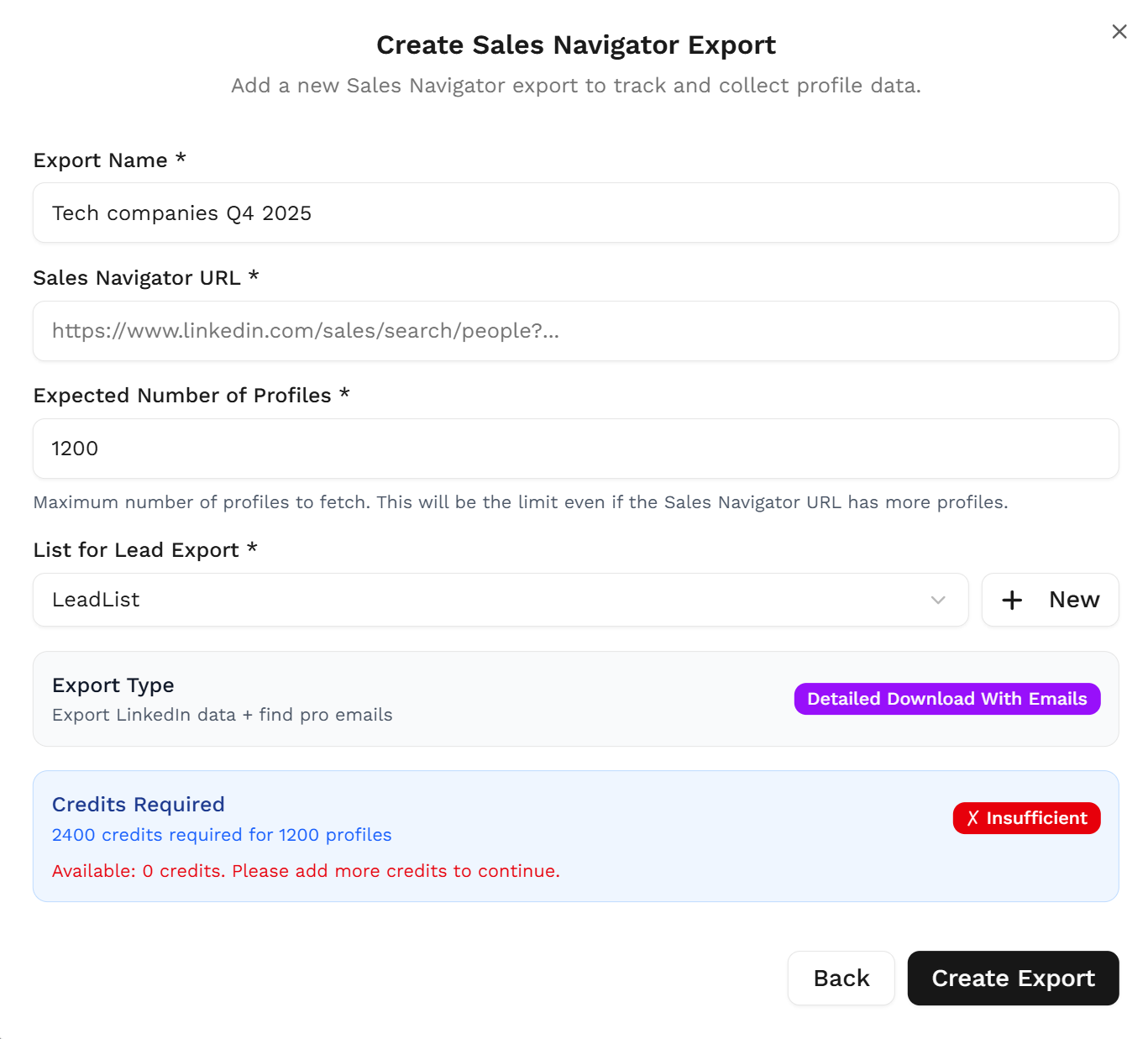
2. Create your Sales Navigator lead list
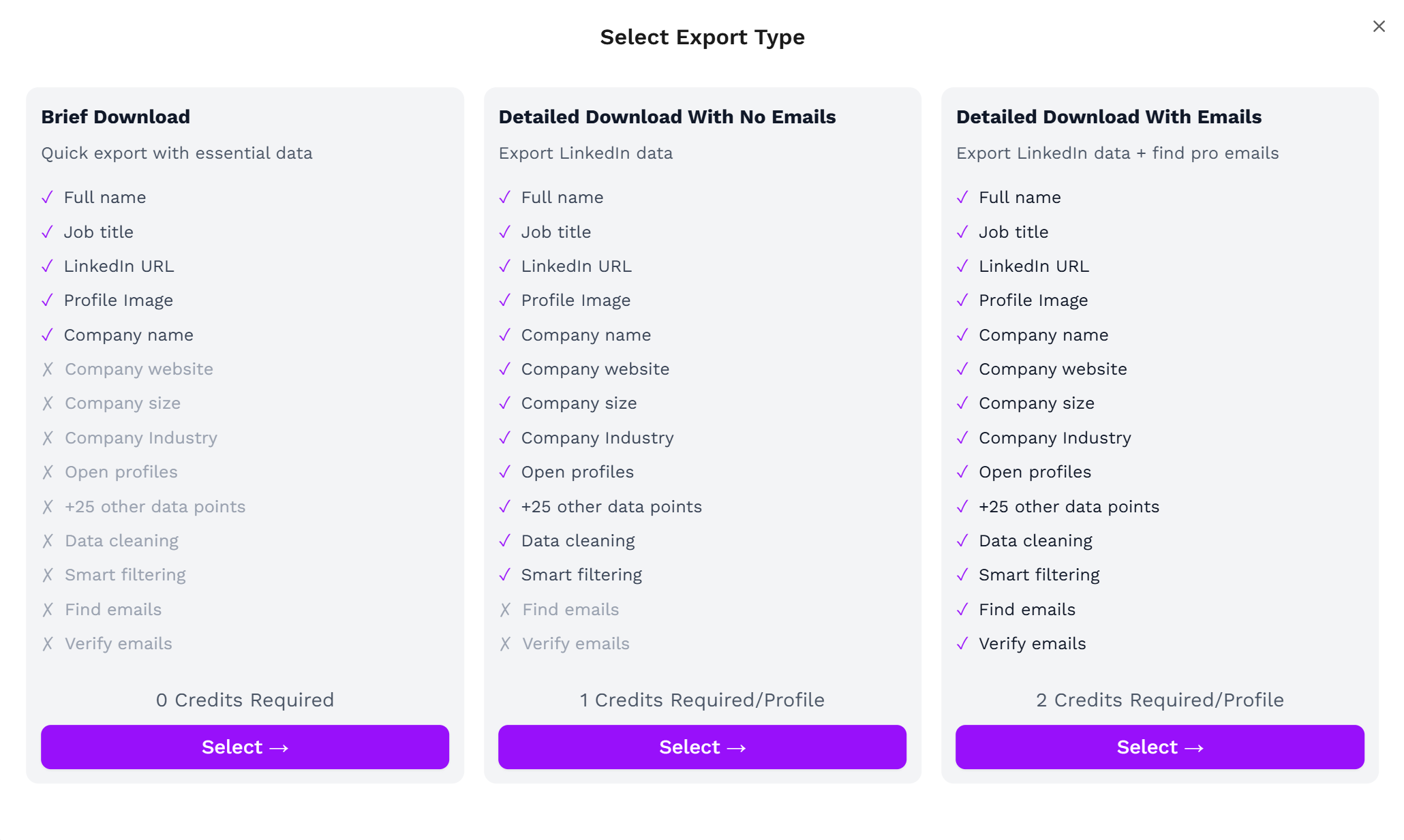
Once the Chrome extension is installed, go to the list of leads you want to export. It can be:- Brief Download
- Detailed Download With No Emails
- Detailed Download With Emails
3. Download your cleaned list
After the extraction is done, you will get an email. This email will have a link to download your lead list in a CSV file.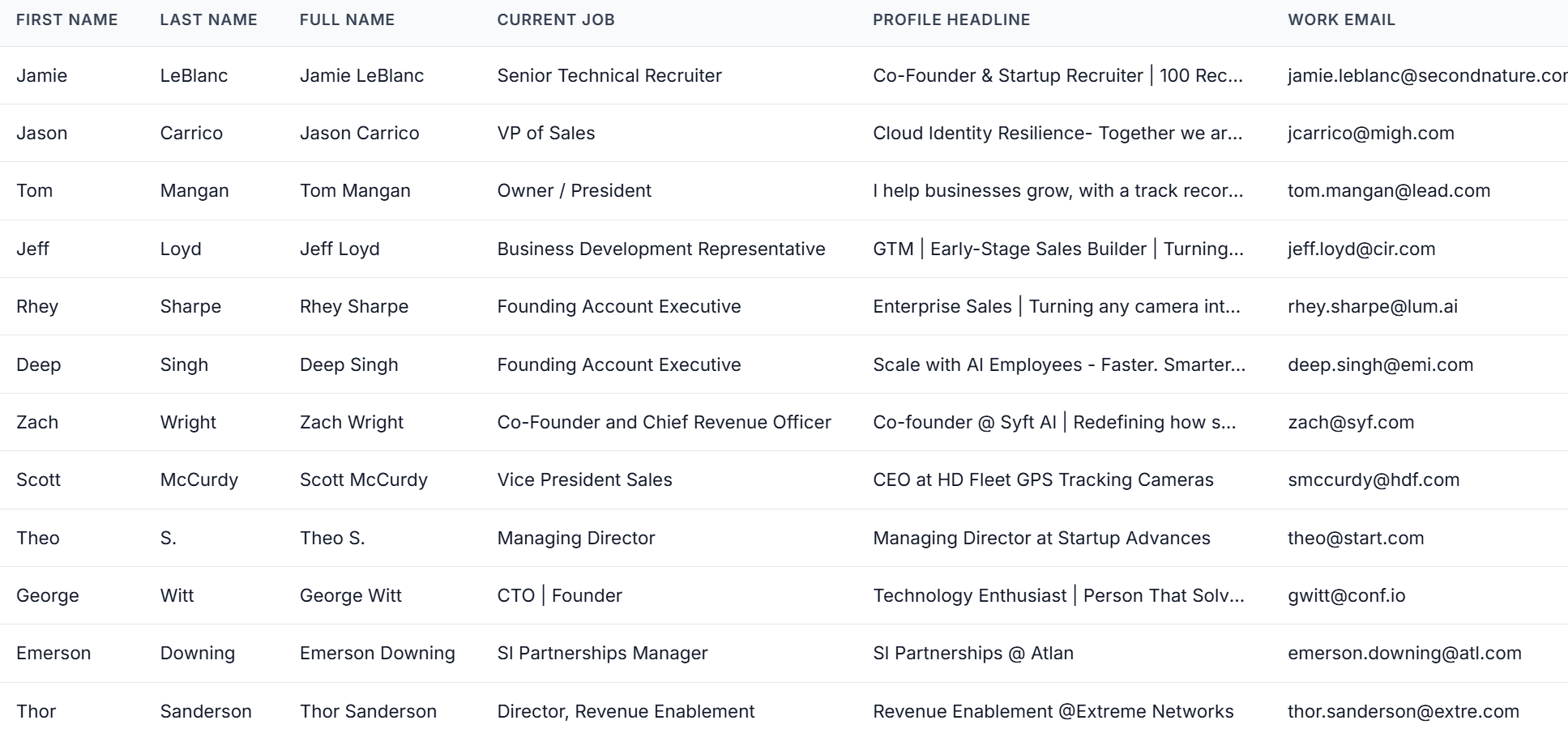
- First names
- Last names
- Company names
- Job titles
FAQs - Sales Navigator Export
1. Do I need a Sales Navigator subscription to export leads? Yes. Outx.ai extracts data directly from your Sales Navigator searches and lists, so you must have an active subscription.2. Is exporting leads from Sales Navigator a native LinkedIn feature? No. Sales Navigator does not offer built-in export. Outx.ai enables safe exporting through its Chrome Extension.
3. How many leads can Outx.ai export at once? Outx.ai can export up to 2500 results per search from Sales Navigator or People Search.
4. Is the export safe and compliant? Yes. All data comes directly from your own LinkedIn session, keeping the workflow GDPR-compliant and secure.
5. Do I need to install a Chrome Extension? Yes. The Chrome Extension powers the on-page Export button and allows Outx.ai to fetch data in real time.
6. What formats can I download the data in? Exports are delivered as CSV files, ready for CRMs, enrichment tools, or cold email sequences.
7. Does Outx.ai clean the exported data? Yes. Outx.ai automatically cleans first names, last names, job titles, and company names to deliver a polished dataset.
8: Can I export emails too? Yes. Choose Detailed Download With Emails if you want email fields included (availability depends on LinkedIn visibility).